What XMOX Extracts from a WhatsApp Export
When you upload a WhatsApp export ZIP, XMOX processes:
- Text messages — the full conversation thread, with timestamps and sender names.
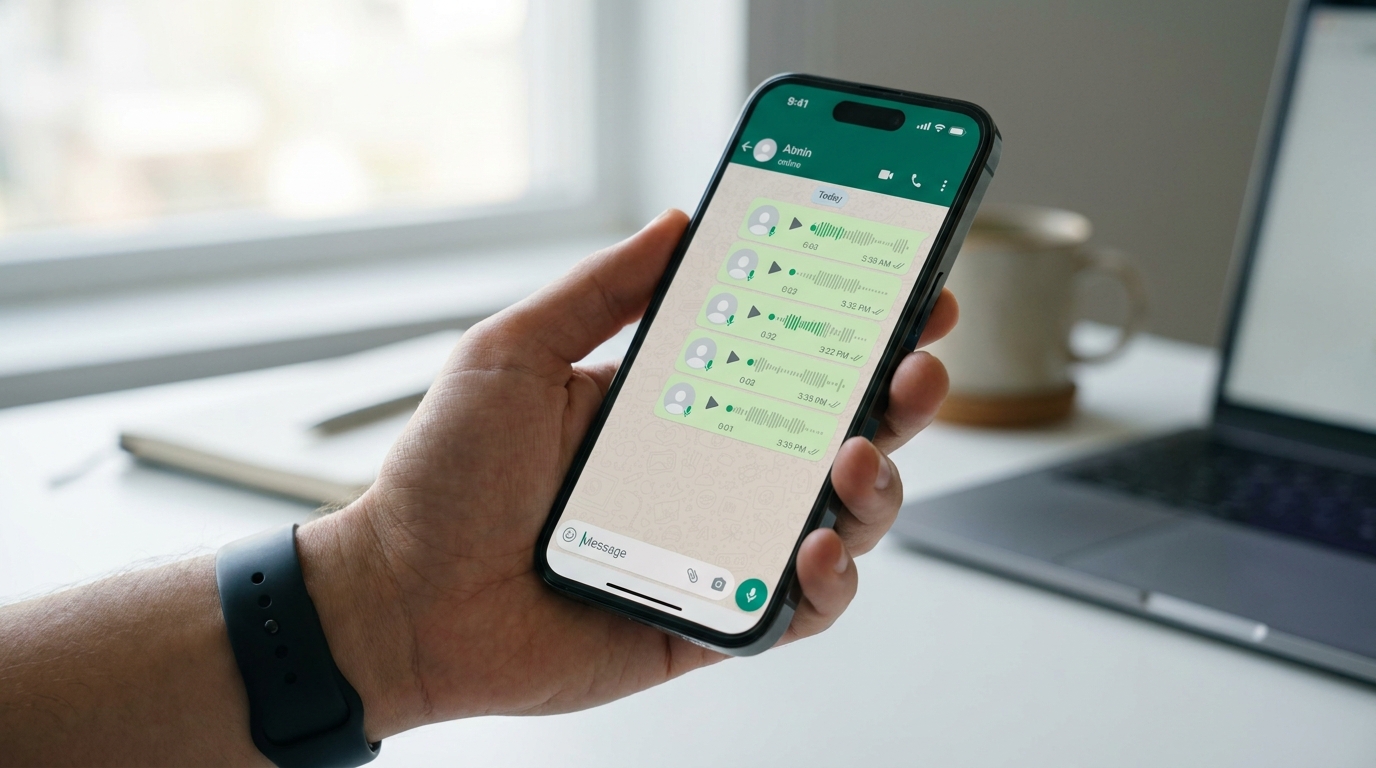
- Voice notes (.opus files) — automatically transcribed to text.
- Shared documents — PDFs and Word files attached in the chat are read and included in the analysis.
WhatsApp exports include only the last 10,000 messages (a WhatsApp platform limit). For very long chats, export frequently to avoid losing older content.
How to Export on Android
1
Open the WhatsApp chat or group you want to export.
2
Tap the ⋮ (three-dot menu) in the top-right corner.
3
Tap More, then Export Chat.
4
When asked, choose "Include Media" — this ensures voice notes are included in the export.
5
A ZIP file is created. Share or save it — for example, send it to yourself via email, save it to Google Drive, or transfer it to your computer.
How to Export on iPhone
1
Open the WhatsApp chat or group you want to export.
2
Tap the contact name or group name at the very top of the screen to open the info panel.
3
Scroll down and tap Export Chat.
4
Choose "Attach Media" when prompted — this includes voice notes and shared files.
5
Use the iOS share sheet to Save to Files, AirDrop to your Mac, or send to yourself by email. Then transfer the ZIP to the device you use for XMOX.
Uploading to XMOX
1
In your XMOX workspace, click + New Job.
2
Select "WhatsApp Export" as the source type.
3
Upload the ZIP file as-is — do not unzip it first. XMOX reads the ZIP structure directly.
4
Processing begins automatically. Voice notes are transcribed and merged with the text timeline. The job will show Ready when complete.
Analysing the Chat
Once the job is ready, you can ask the AI questions like:
- "Who sent the most messages?"
- "Summarise the main decisions made in this conversation."
- "What did [name] say in the voice notes?"
- "Find all messages mentioning delivery dates."
WhatsApp's exported text file uses a specific date/time format that varies by phone region settings. XMOX handles the most common formats automatically. If timestamps appear incorrect, check that your phone's date format is set to a standard locale.
Got a WhatsApp export ready? Upload it now and start asking questions in seconds.
Open Workspace →